API Service Keys & MCP
Oneleet’s API provides a programmable interface to your data. Use service keys for AI agent automation, MCP servers, and scripts to interact with your Oneleet workspace. Service keys are decoupled from user accounts and can be scoped for specific tasks.
Configuring an API service key
Section titled “Configuring an API service key”Tenant Admins can create new API service keys. To create one:
-
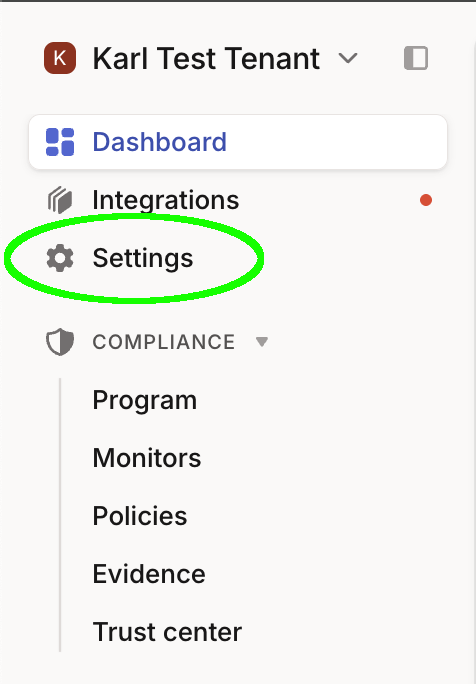
Click Settings in the left panel.
-
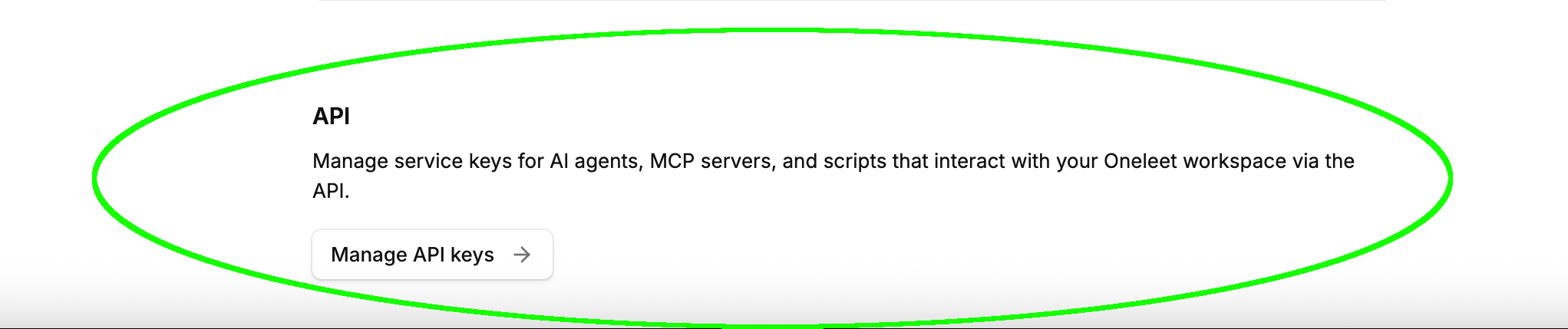
Scroll down to the API section and click Manage API keys.
-
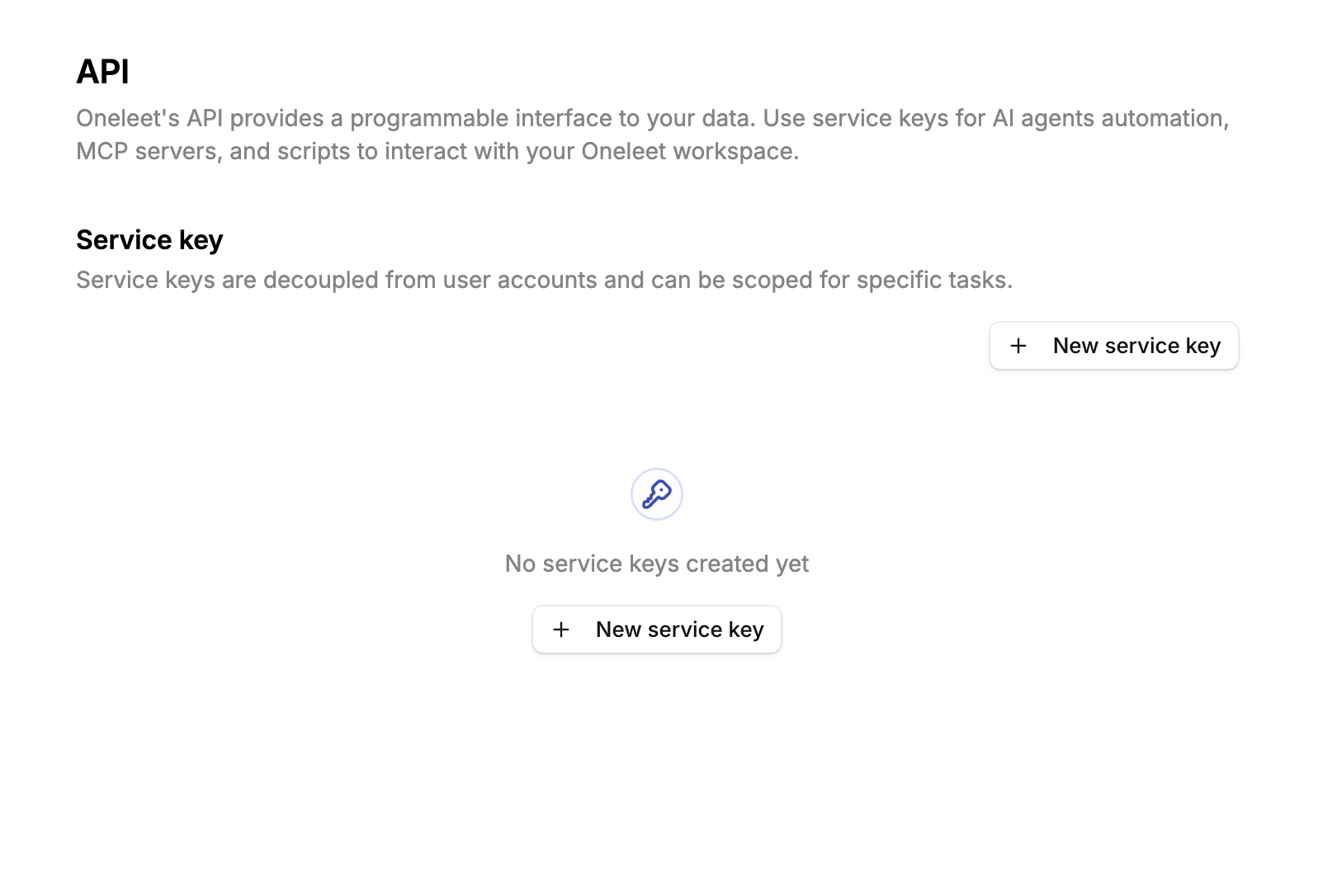
You’ll be greeted by the API service keys settings page.
-
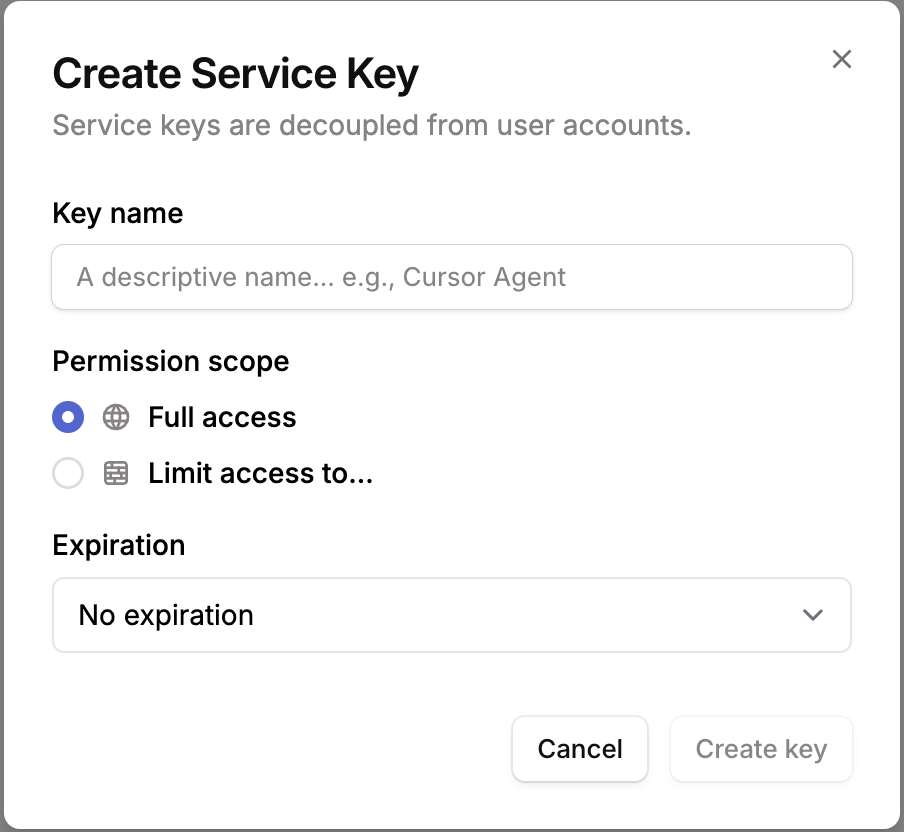
Click New service key to open the Create Service Key modal.
-
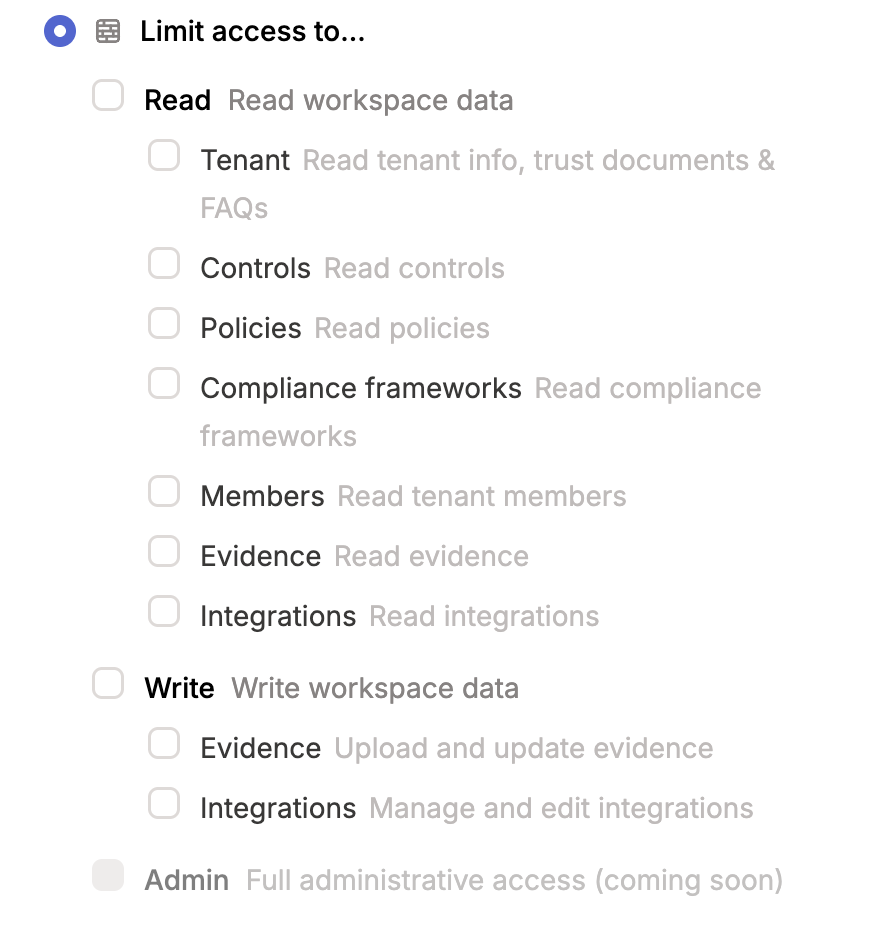
Choose a permission scope. Grant Full access — which grants access to all the API routes currently available in the Oneleet API — or choose Limit access to… to grant only specific scopes.
-
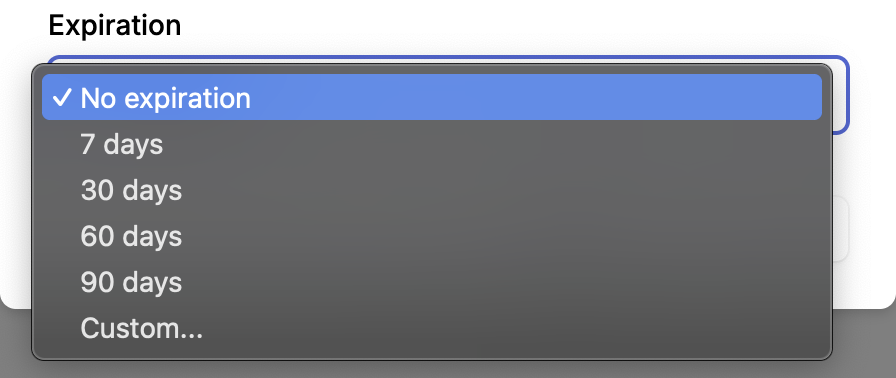
Choose No expiration or select an expiration from the dropdown.
-
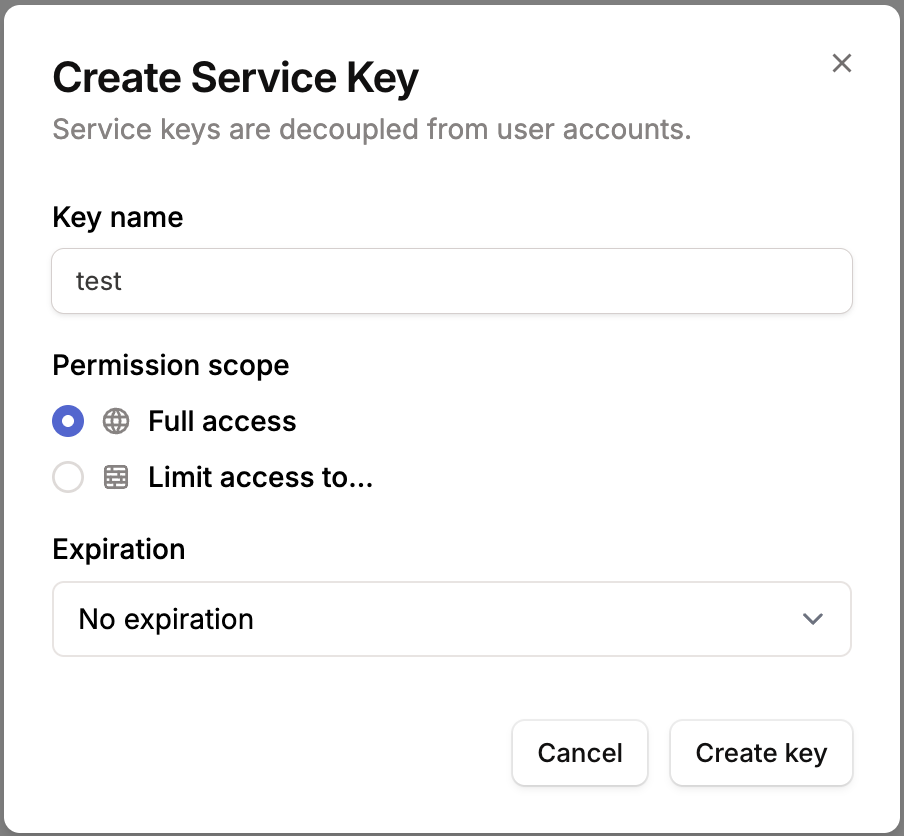
Give the key a name and click Create key.
-
Copy the secret value now. It will not be available after you click away from this screen — the secret is not stored on any system and cannot be retrieved later.
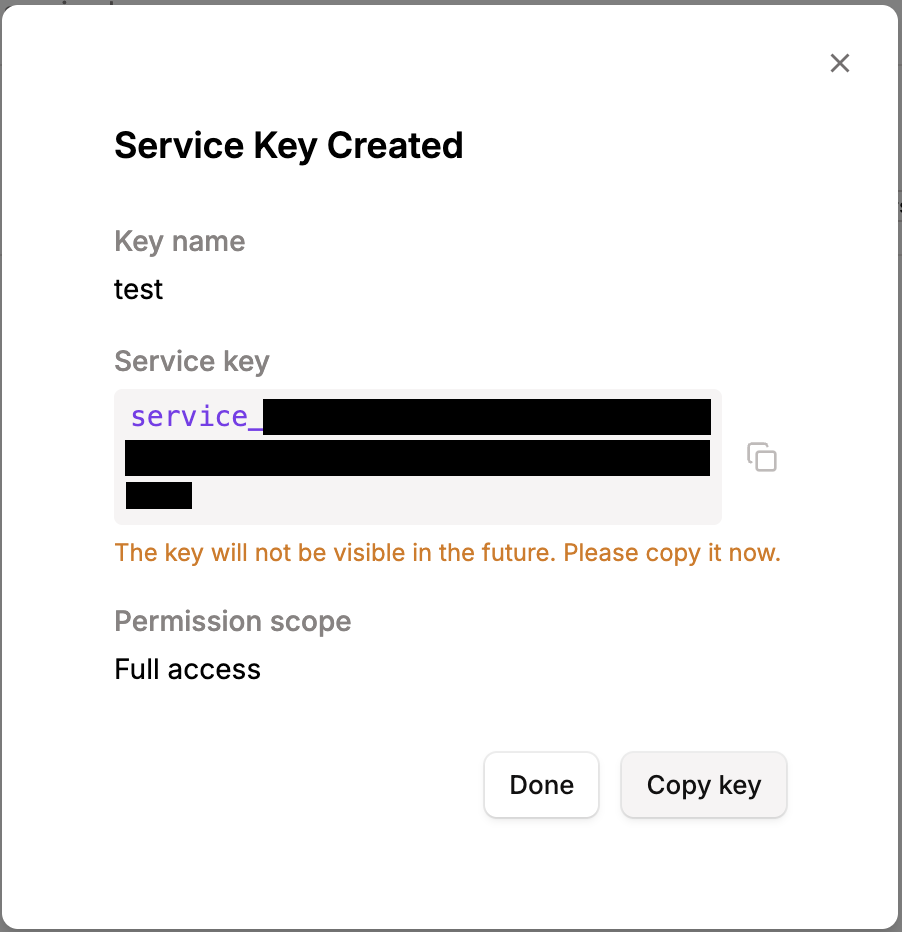
Important: The secret is shown only once, at creation. Store it somewhere safe (such as a secrets manager) before clicking Done — it can never be retrieved again.
-
After clicking Done, the new key appears in the list of API service keys.

Editing and revoking a key
Section titled “Editing and revoking a key”Click the menu (⋯) on a key to edit it — you can change scopes or add an expiration date — or to revoke it.
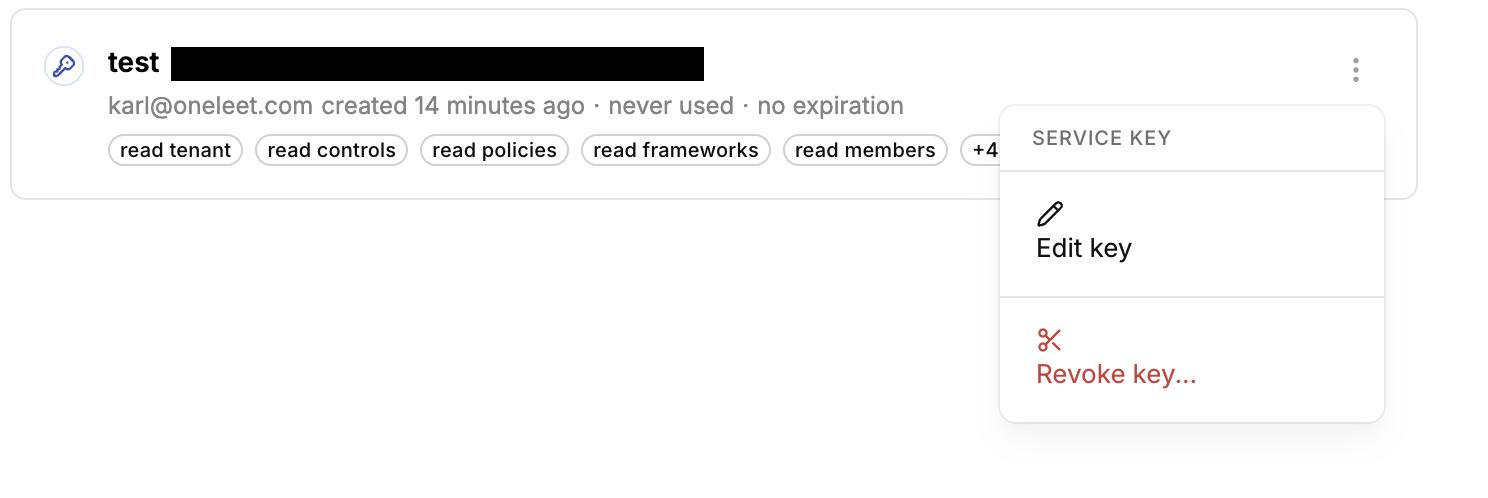
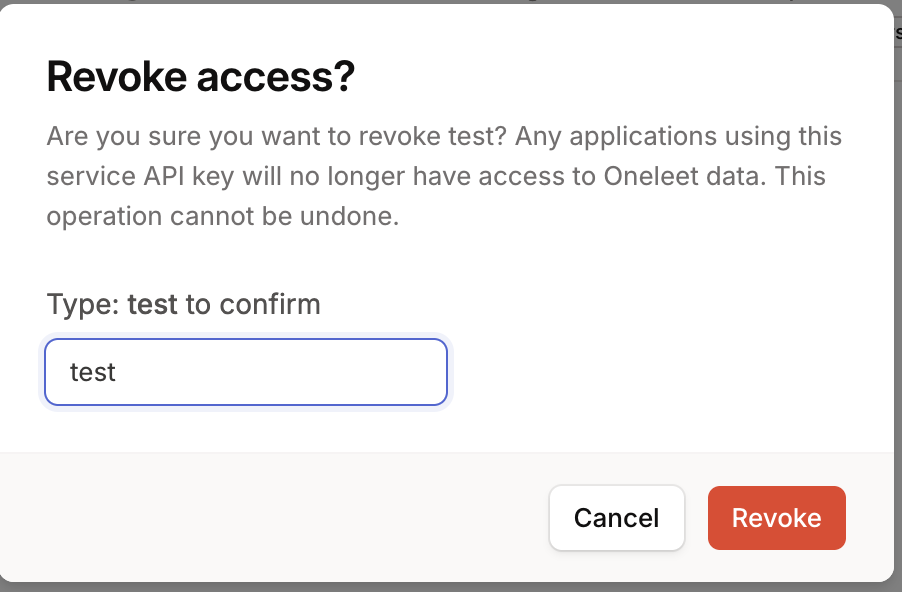
Revoking a key requires you to type the key’s name before the Revoke button is enabled, as this operation cannot be undone from the UI.
Immediately after revocation, the key is no longer authorized to make successful requests against the API, and it appears as revoked in the UI.

Using your API service key
Section titled “Using your API service key”An API service key can be used to:
- Connect to the Oneleet MCP server from an LLM client (Claude Code, Claude Desktop, Codex, Cursor, etc.).
- Authenticate HTTP requests directly via Bearer token authorization from any HTTP client (curl, Postman, Insomnia, etc.).
The reference for the public API available to service keys is published at api.oneleet.com/api/v1/public/api-reference.
MCP support — architecture overview
Section titled “MCP support — architecture overview”What is MCP?
Section titled “What is MCP?”MCP (Model Context Protocol) is an open standard created by Anthropic that lets AI assistants (like Claude) interact with external tools and data sources in a structured, secure way. Think of it as a universal adapter that lets AI agents read from and write to business applications without custom integration work per AI tool.
What does Oneleet’s MCP support enable?
Section titled “What does Oneleet’s MCP support enable?”Oneleet exposes a subset of its API as MCP tools, allowing AI assistants to directly interact with compliance data.
Using Oneleet MCP, you can connect Claude (via Claude Desktop, Claude Code, or custom agents), Codex, Gemini, or other LLM assistants to your Oneleet workspace, and use natural language to:
- Browse compliance controls and their status, including per-control checks and activities, and controls broken down by compliance framework or requirement
- View and manage evidence (including uploading files)
- Read policies across compliance frameworks
- List integrations and configure new ones
- Inspect compliance frameworks the tenant is enrolled in, and their requirements
- View and manage monitors — inspect runs and results, rerun, enable/disable, snooze, and set ignore status for failing assets
- View tenant members and tenant details
- View pentest findings and their full details (severity, remediation, and affected targets)
- Manage your vendor directory — list, delete, and restore vendors
- Manage your risk register — read, create, update, and archive risks and risk assessments (requires the Risk Management feature)
- Run access reviews — read reviews, update accounts, sync accounts from integrations, and mark vendors as reviewed
Just tell your LLM assistant, “show me all my SOC 2 controls that are failing,” or “upload this evidence document for control AC-1”.
How it works
Section titled “How it works”-
Create a service key in Settings → API, choosing which scopes the key should have.
-
Configure your AI assistant with the Oneleet MCP server URL and the service key.
-
When the AI needs compliance data, it calls the appropriate MCP tool — the Oneleet server authenticates the request, checks permissions, executes it against the real API, and returns the result.
Authentication & security
Section titled “Authentication & security”| Feature | Detail |
|---|---|
| Auth method | Service key tokens (service_<id>_<secret>) — separate from user login credentials |
| Secret storage | Only a SHA-256 hash is stored; the raw secret is shown once at creation and never again |
| Tenant isolation | Each service key is bound to exactly one tenant. Cross-tenant access is impossible. |
| Scope-based permissions | Keys are granted specific read/write scopes (e.g., READ_EVIDENCE, WRITE_INTEGRATIONS). The AI can only access what the key allows. |
| Expiration & revocation | Keys can have an expiration date and can be revoked instantly from the UI. |
| Validation on every call | Expiration, revocation, and scope are checked on every single MCP call. |
Available permission scopes
Section titled “Available permission scopes”Scopes available as of 2026-07-07:
| Scope | Access |
|---|---|
READ_TENANT |
View tenant details, trust documents, and FAQs |
READ_CONTROLS |
View compliance controls, their checks and activities |
READ_POLICIES |
View policies |
READ_TENANTCOMPLIANCEFRAMEWORKS |
View enrolled compliance frameworks and their requirements |
READ_TENANTMEMBERS |
View team members |
READ_INTEGRATIONS |
View integrations |
READ_EVIDENCE |
View evidence items |
READ_MONITORS |
View monitors and their runs and results |
READ_PENTESTFINDINGS |
View pentest findings and their details |
READ_GIT_REPOSITORY_CONTENTS |
Read Git repository contents via integrations |
READ_VENDORS |
View vendors and vendor discoveries |
READ_RISKS |
View risks and risk assessments¹ |
READ_ACCESSREVIEWS |
View access reviews, their vendors, accounts, and attachments |
WRITE_EVIDENCE |
Create and upload evidence |
WRITE_INTEGRATIONS |
Create and modify integrations |
WRITE_MONITORS |
Rerun, enable/disable, and snooze monitors; set ignore status for assets |
WRITE_GIT_REPOSITORY_CONTENTS |
Modify Git repository contents via integrations |
WRITE_VENDORS |
Delete and restore vendors³ ⁴ |
WRITE_RISKS |
Create, update, archive, and delete risks and risk assessments¹ |
WRITE_ACCESSREVIEWS |
Create, update, and complete access reviews² |
¹ Risk scopes require the Risk Management feature to be enabled for your workspace.
² Marking a vendor as reviewed (access-review-vendor:update:mark-as-reviewed) accepts a file attachment and is therefore available over direct HTTP only, not as an MCP tool.
³ Vendor deletion is a soft delete: the vendor disappears from lists, but its assessment answers, notes, evidence links, and data inventory are preserved. Restore a deleted vendor with POST /api/v1/tenant-vendors/{id}/restore (also exposed as an MCP tool), or by re-adding the same vendor — the bulk upsert restores the original record rather than creating a new one. Pass includeDeleted=true to the vendor list to see deleted vendors.
⁴ Creating and updating vendors is currently disabled through the public API and MCP server. The endpoint’s schema validation was overly lax, making it possible to insert corrupted vendor assessments. We’ll add this feature back once we’ve improved the validation layer.
Connecting an MCP client
Section titled “Connecting an MCP client”-
Go to Settings → API in the Oneleet dashboard.
-
Create a service key, name it, select the desired scopes, and optionally set an expiration (see the walkthrough above).
-
Copy the generated token (shown only once).
-
Add the Oneleet MCP server to your AI tool’s configuration:
- URL:
https://api.oneleet.com/mcp - Transport: Streamable HTTP
- Auth: Bearer token using your service key secret (
service_<id>_<secret>)
- URL:
Add it to your Claude Code settings via Settings > MCP Servers, or add it to .mcp.json in your project root:
{ "mcpServers": { "oneleet": { "type": "http", "url": "https://api.oneleet.com/mcp", "headers": { "Authorization": "Bearer <your-service-key>" } } }}Add it to .cursor/mcp.json in your project root, or configure it via Cursor Settings > MCP:
{ "mcpServers": { "oneleet": { "url": "https://api.oneleet.com/mcp", "headers": { "Authorization": "Bearer <your-service-key>" } } }}Use this configuration with any MCP-compatible client. The Oneleet MCP server uses Streamable HTTP transport:
{ "name": "oneleet", "transport": "streamable-http", "url": "https://api.oneleet.com/mcp", "headers": { "Authorization": "Bearer <your-service-key>" }}Replace <your-service-key> with the token shown after creating a service key.